

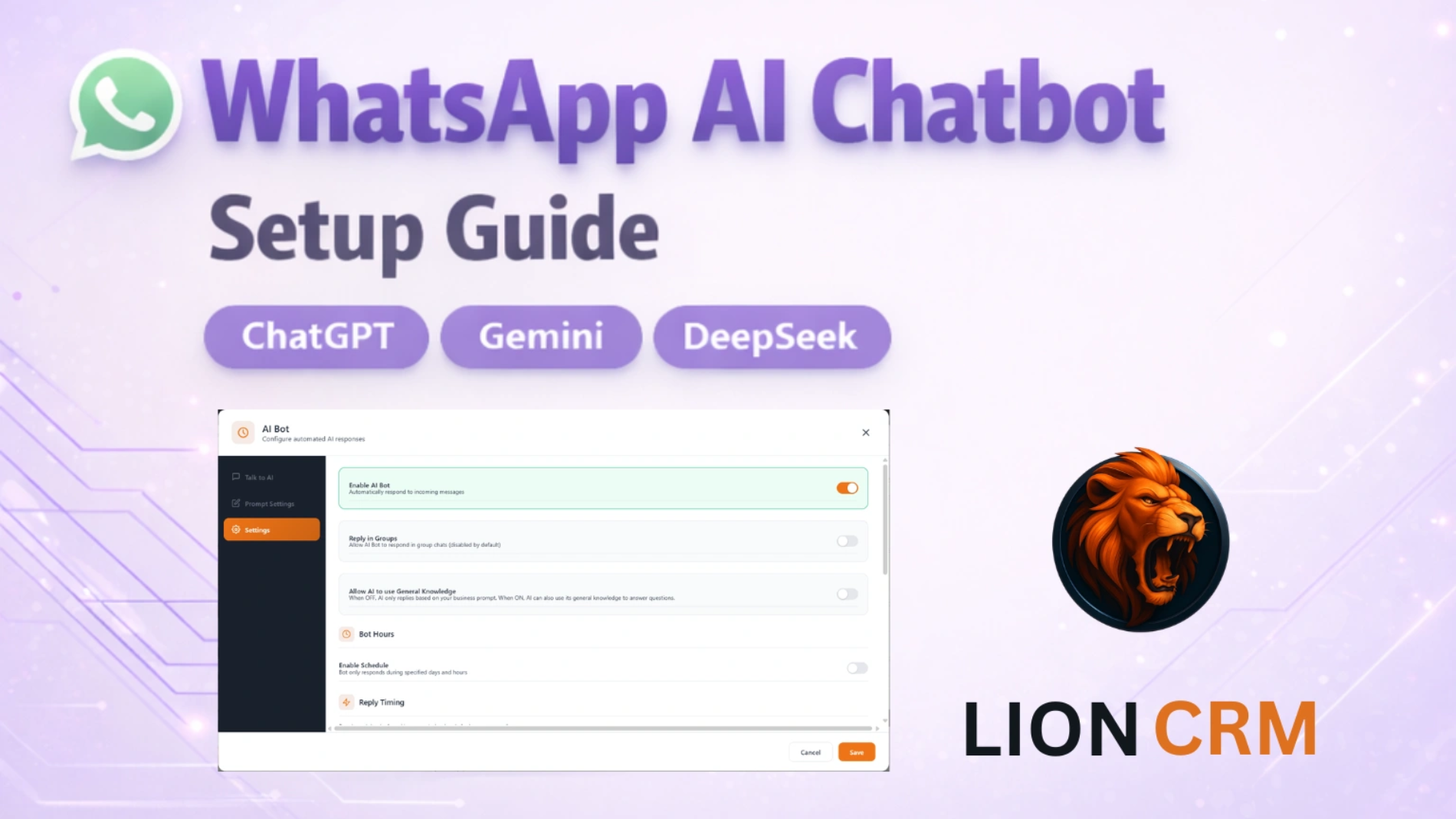
Imagine your WhatsApp replying to every customer automatically — answering questions, booking appointments, updating CRM profiles — all while you sleep. That's exactly what the WhatsApp AI Chatbot feature in Lion CRM does.
Whether you use ChatGPT, Google Gemini, or DeepSeek — Lion CRM lets you connect any of these AI providers to your WhatsApp Web and turn your business messaging into a fully automated, intelligent support system. No WhatsApp Business API required. No cloud server. No coding. Just a Chrome extension and your AI API key.
In this guide, we'll walk you through the complete setup — from inserting your API key to configuring business prompts, stop keywords, bot hours, reply timing, appointment booking, and testing your bot.
📺 Watch the Full Video Tutorial
What Is a WhatsApp AI Chatbot?
A WhatsApp AI Chatbot is an automated assistant that reads incoming WhatsApp messages, understands the customer's intent using artificial intelligence, and replies instantly — without any human intervention.
Unlike basic auto-reply bots that send the same fixed message every time, an AI-powered chatbot understands context, answers complex questions based on your business data, and can even perform CRM actions like booking appointments or updating customer profiles.
With Lion CRM, your WhatsApp AI Chatbot runs directly on WhatsApp Web through a Chrome extension. You don't need the WhatsApp Business API, a cloud server, or any coding knowledge. Just connect your preferred AI provider — ChatGPT, Gemini, or DeepSeek — and configure the bot through an easy settings panel.
Why Use Lion CRM for WhatsApp AI Bot?
Most WhatsApp chatbot solutions require the WhatsApp Business API — which means Meta verification, BSP providers, webhook setups, and monthly API costs. Lion CRM takes a completely different approach.
- No WhatsApp API Required — Works directly on WhatsApp Web via Chrome extension. No Meta Business verification needed.
- Choose Your AI — Connect ChatGPT (OpenAI), Google Gemini, or DeepSeek. Use whichever AI model fits your budget and quality needs.
- Business Prompt Customization — Train the bot with your own business data so it answers accurately, not generically.
- Smart Stop Keywords — Bot automatically stops when a customer asks for a human agent.
- Bot Hours Scheduling — Set specific days and times when the bot should respond.
- AI-Powered CRM Actions — Bot can auto-update customer profiles, add labels, and create appointments.
- User License & Whitelabel Available — 7-day free trial included. To know pricing, contact us: Kuldeep — +91 74260-38448 | Rakshit — +91 92149-96678
Prerequisite — Add Your AI API Key
Before the AI Bot can work, you need to connect your preferred AI provider by adding its API key. This is a one-time setup. Lion CRM supports three platforms:
- ChatGPT (OpenAI) — Get your key from platform.openai.com/api-keys
- Google Gemini — Get your key from Google AI Studio
- DeepSeek — Get your key from platform.deepseek.com
How to Add Your API Key:
- Open WhatsApp Web in Chrome with the Lion CRM extension installed.
- Click on your profile section (avatar/icon) in the Lion CRM panel.
- Click the Settings button (⚙️ gear icon).
- You'll see the "Insert AI API Key" screen with three platforms — Gemini AI, ChatGPT, and DeepSeek.
- Select your AI platform (for example, click on ChatGPT).
- Paste your API key in the "AI API KEY" field.
- Click the "Validate" button to verify the key is correct.
- Once it shows "API key is valid", click "Save".

Once your API key is saved and validated, the AI Bot button will appear in your Lion CRM toolbar. Click it to open the AI Bot configuration panel — which has three tabs: Talk to AI, Prompt Settings, and Settings.
Prompt Settings — Business Prompt, Fallback Reply & Action Prompts
The Prompt Settings tab is the brain of your AI Bot. This is where you tell the AI who you are, what your business does, and how it should respond. There are three key fields here:
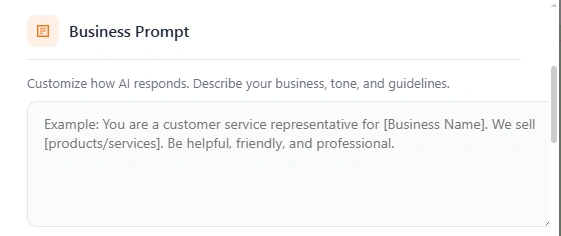
1. Business Prompt
This is the most important field. The Business Prompt is your main instruction to the AI. Everything the bot says to your customers depends on what you write here. Describe your business, products/services, pricing, policies, and how the bot should behave.
For example: "You are a customer service representative for [Business Name]. We sell

16M Digital Product Bundle – LOTSOFCODE
Original price was: ₹5,900.00.₹1,768.82Current price is: ₹1,768.82.
Add to cart

2000+ APPS SOURCE CODE
Original price was: ₹5,900.00.₹1,178.82Current price is: ₹1,178.82.
Add to cart

All India Latest Data Base – B2B, B2C (Emails, Numbers)
Original price was: ₹5,898.82.₹1,768.82Current price is: ₹1,768.82.
Add to cart
Chatpion App Approval for facebook/instagram & Basic App Approval
Original price was: ₹35,398.82.₹27,110.50Current price is: ₹27,110.50.
Add to cart

Cheetah CRM (WhatsApp CRM Pro) – CRM with Bulk Messaging & Automation
₹5,000.00
Buy Now
INSTAGRAM AUTOMATION TOOL WHITELABEL
Original price was: ₹126,501.00.₹75,868.00Current price is: ₹75,868.00.
Add to cart

JustDial jd Data Scraper/Extractor Free Download – lotsofcode.in
Original price was: ₹5,898.82.₹3,538.82Current price is: ₹3,538.82.
Add to cart

JustDial jd Data Scraper/Extractor Whitelabel – lotsofcode.in
Original price was: ₹35,398.82.₹11,798.82Current price is: ₹11,798.82.
Add to cart
Latest WHATSAPP CRM 3.5.4 EXTENSION WHITE LABEL with Webhook +Chatgpt
Original price was: ₹135,000.95.₹86,467.95Current price is: ₹86,467.95.
Add to cart
Latest WhatsApp CRM Extension White Label With Backend
Original price was: ₹11,800.00.₹2,950.00Current price is: ₹2,950.00.
Add to cart
Lion CRM – Best WhatsApp CRM Chrome Extension with AI Chatbot (Whitelabel) 1 Year
₹10,000.00
Contact for Price
WEB TO APP CONVERTER SOFTWARE – DOWNLOAD
Original price was: ₹9,438.82.₹1,768.82Current price is: ₹1,768.82.
Add to cart
WHATSAPP CRM / PUPPY CRM 3.5.4 EXTENSION 1 YEAR USER LICENSE
Original price was: ₹11,800.00.₹4,873.40Current price is: ₹4,873.40.
Add to cart
WhatsApp CRM Extension WhiteLabel – 50usd/Year
₹5,000.00
Buy Now

Yellow Pages Leads Extractor – Keygen
Original price was: ₹5,900.00.₹1,768.82Current price is: ₹1,768.82.
Add to cart
2. Fallback Reply
When the AI doesn't have enough information from your business prompt to answer a question, it sends this Fallback Reply instead of making up an answer. This prevents the bot from giving wrong information.
Example: "Thank you for your question! I don't have specific information about that right now. Our team will get back to you shortly."
3. Action Prompts — Appointments, Tabs & Profile Updates
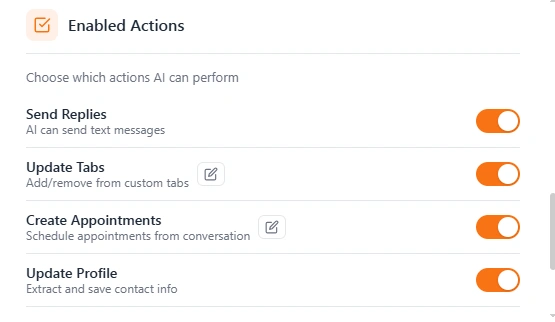
Below the Business Prompt and Fallback Reply, you'll find Action Prompts — these control how the AI handles specific CRM actions:
🗓️ Create Appointment
When enabled, the AI Bot can schedule appointments for customers. You need to configure:
- Meeting Link — Paste your Google Meet, Zoom, or any meeting platform URL.
- Message Template — The confirmation message sent to the customer. Uses variables: {name}, {date}, {time}, {link}. Default: "Hi {name}, your appointment is scheduled for {date} at {time}. Join here: {link}"
- Office Hours (Appointment Timing) — Set Start Time and End Time (e.g., 09:00 AM to 07:00 PM). The AI will only schedule appointments within these hours.
- Send message immediately — Toggle ON to send the appointment confirmation right after the AI schedules it.
- Custom AI Instructions — Additional instructions for appointment behavior (e.g., "Always suggest slots between 10 AM - 6 PM. Minimum notice: 24 hours.").
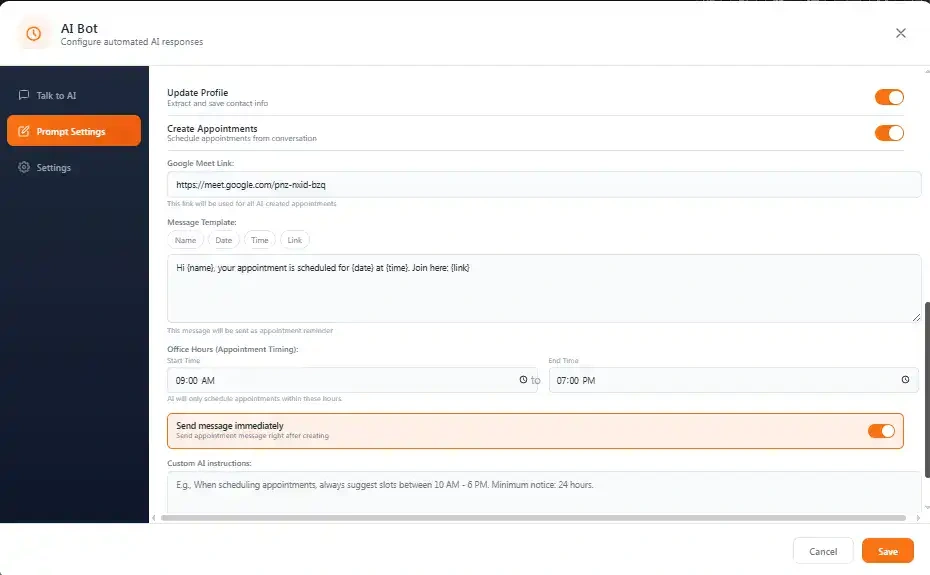
When a customer sends something like "Can you schedule an appointment for today 6 PM?", the AI understands the request, creates the appointment within your defined hours, and sends the confirmation message automatically. The variables ({name}, {date}, {time}, {link}) are replaced with actual data from the conversation.
🏷️ Update Tabs / Labels
The AI Bot can automatically add or update customer labels (tabs) based on the conversation. For example, if a customer says "I am interested in Lion CRM," the bot can automatically add an "Interested" label to that contact in your CRM. You can provide a custom prompt to guide how the AI should categorize customers.
👤 Update Profile
When enabled, the AI Bot automatically extracts customer information (name, email, phone, etc.) from conversations and updates their CRM profile. If a customer says "My email is [email protected]," the bot detects it and fills in the email field in their contact profile automatically.
Settings — Enable Bot, Groups, General Knowledge & More
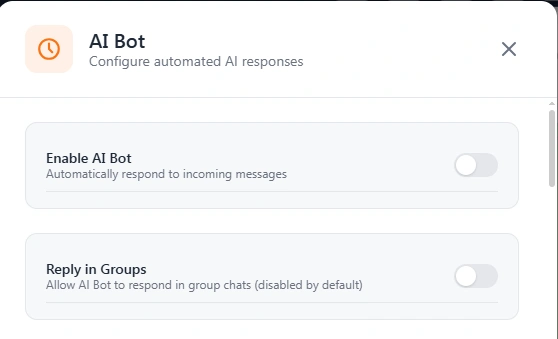
The Settings tab contains all the configuration options that control how your AI Bot behaves. Here's a breakdown of each setting:
Enable AI Bot
This is the master switch. Toggle it ON to activate the AI Bot. When enabled, the bot will automatically respond to incoming WhatsApp messages using your chosen AI provider and your business prompt. When OFF, the bot does nothing — even if everything else is configured.
Reply in Groups
By default, the AI Bot only replies in personal/individual chats. If you enable this toggle, the bot will also respond in WhatsApp group chats. Keep it OFF if you don't want the bot interfering in group conversations — which is recommended for most businesses.
Allow AI to Use General Knowledge
When this is OFF, the bot strictly answers based on your business prompt only. When ON, the AI can also use its general knowledge (from ChatGPT/Gemini/DeepSeek's training data) to answer questions that go beyond your prompt.
Bot Hours — Schedule When the Bot Responds
You may not want the AI Bot to reply 24/7. Maybe you only want it active during business hours, or only on weekdays. The Bot Hours feature lets you schedule exactly when the bot should respond.
How to Configure:
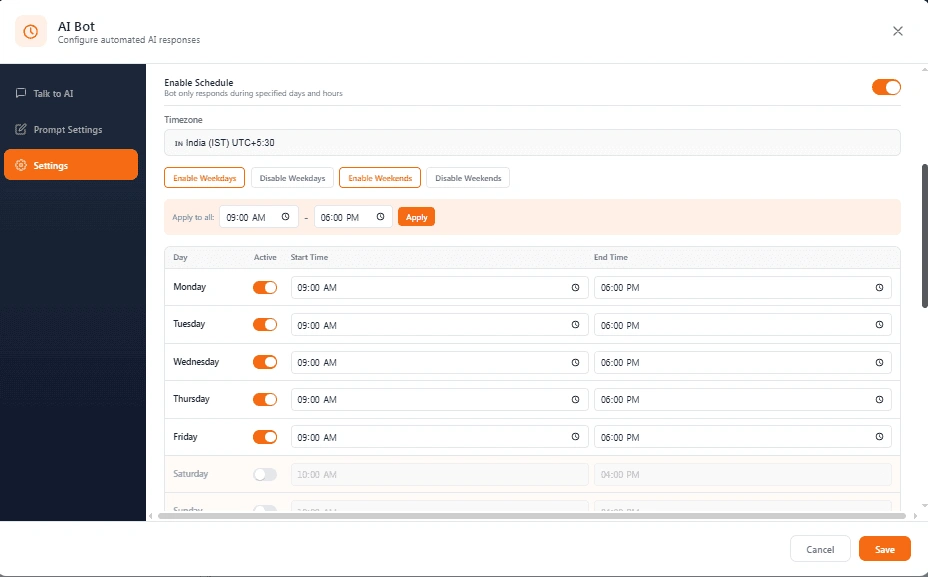
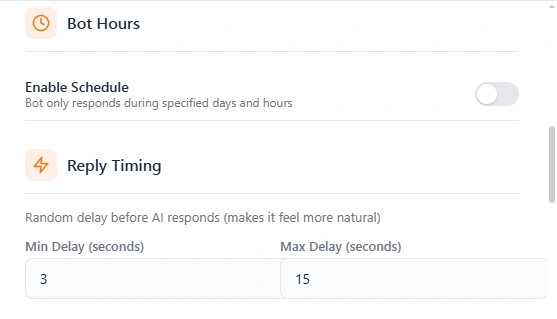
- In the Settings tab, scroll down to "Bot Hours" and toggle "Enable Schedule" to ON.
- Set your Timezone (e.g., India IST UTC+5:30).
- Use the quick buttons — Enable Weekdays, Disable Weekdays, Enable Weekends, Disable Weekends — to quickly configure days.
- Use "Apply to all" to set the same time (e.g., 09:00 AM – 06:00 PM) across all active days.
- Fine-tune individual days — toggle each day (Monday through Sunday) ON/OFF and set specific Start/End times for each.
This is especially useful for businesses that want the bot to handle messages during office hours and let the team take over manually after hours — or the opposite, using the bot to cover night shifts and weekends when your team is off.
Reply Timing & Context Messages
These two settings make your AI Bot feel more human and give it better accuracy:
Reply Timing
This adds a random delay before the bot responds, making the conversation feel natural — like a real person typing. You set a Min Delay (e.g., 3 seconds) and a Max Delay (e.g., 15 seconds). The bot waits a random time between these two values before sending its reply.
This prevents the bot from responding instantly (which feels robotic to customers) and creates a more human-like conversation experience.
Context Messages
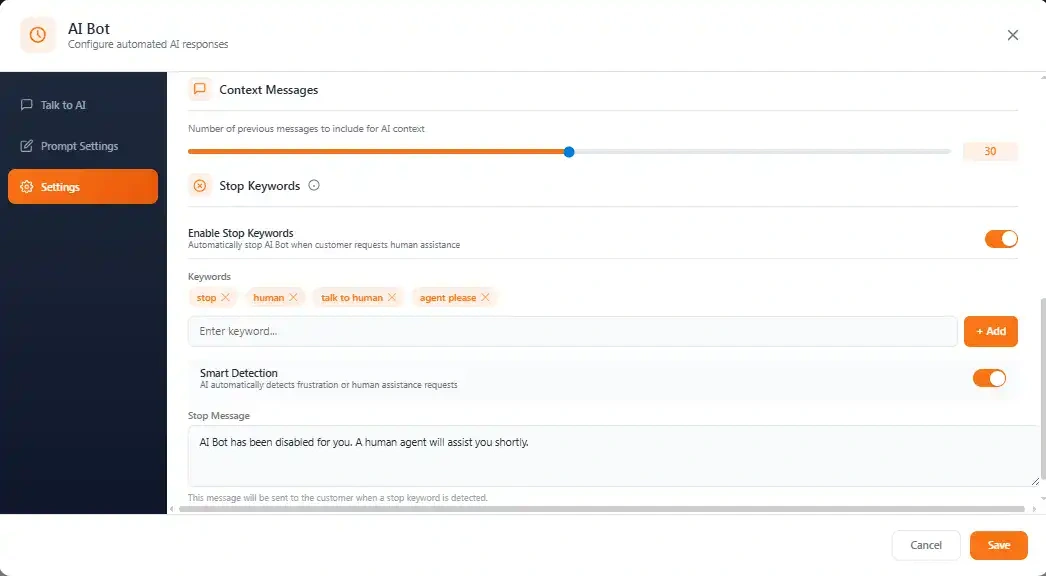
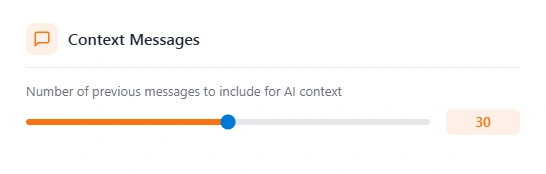
This slider controls how many previous messages the AI reads before generating a reply. For example, if you set it to 30 messages, the AI reads the last 30 messages in that conversation to understand the full context — not just the latest message.
This helps the AI give more accurate, contextually relevant answers instead of treating each message in isolation. The more context you give, the better the responses — but higher values use more AI tokens (which may cost more with your API provider).
Stop Keywords & Smart Detection
Sometimes customers want to talk to a real person instead of the bot. The Stop Keywords feature automatically pauses the AI Bot for that specific customer when they use certain words.
How It Works:
When "Enable Stop Keywords" is turned ON, the bot monitors every incoming message for your defined keywords. Default keywords include: stop, human, talk to human, agent please. You can add your own custom keywords (like "real person", "manager", "help me", etc.) using the keyword input field.
When a stop keyword is detected, the bot sends a Stop Message (e.g., "AI Bot has been disabled for you. A human agent will assist you shortly.") and stops replying to that specific customer. Your team can then take over the conversation manually.
Smart Detection
Even better — Lion CRM has Smart Detection which uses AI to automatically detect when a customer is frustrated or requesting human assistance, even without using exact stop keywords. The AI can pick up on cues like "this isn't helping" or "I need to speak to someone" and hand off the conversation gracefully.
Talk to AI — Test Your Prompt & Settings
Before going live with real customers, you should always test your AI Bot to make sure it responds correctly. Lion CRM has a built-in "Talk to AI" tab that lets you simulate customer conversations right inside the panel.
How to Test:
- Go to the "Talk to AI" tab in the AI Bot panel.
- Click "+ New Chat" to start a fresh test conversation.
- Choose your Response Mode:
- AI Bot Prompt — Bot responds using your business prompt and settings (this is what customers will experience).
- Global ChatGPT — Bot responds using the AI's general knowledge without your prompt (useful for comparison).
- Type test messages that your real customers would ask — questions about pricing, product features, business hours, return policies, etc.
- Check if the bot stays on topic and gives accurate answers based on your business prompt.
- If the bot goes off-topic or gives wrong answers, go back to Prompt Settings and refine your Business Prompt with more specific instructions.
- When you're satisfied with the responses, click "Save".
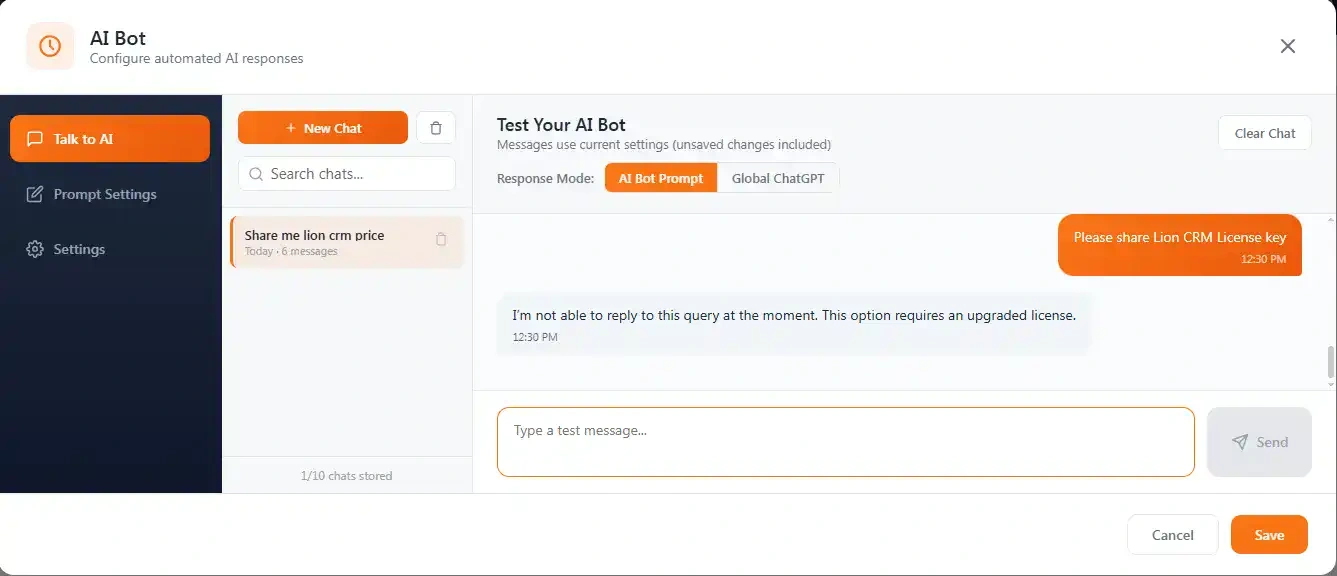
The Talk to AI feature also stores your test chat history (up to 10 chats) so you can revisit and compare how different prompt changes affect the bot's responses. This makes it easy to iterate and fine-tune your AI Bot before it starts talking to real customers.
Ready to Automate Your WhatsApp with AI?
Install Lion CRM, connect your ChatGPT / Gemini / DeepSeek API key, and start auto-replying to customers in minutes. 7-day free trial available!
Install Lion CRM (Free Trial) Visit WebsiteFrequently Asked Questions
Yes! Lion CRM's AI Bot works directly on WhatsApp Web through a Chrome extension. You do NOT need the WhatsApp Business API, Meta verification, or any BSP provider. Just install the extension, add your AI API key, and start.
Lion CRM supports three AI providers: ChatGPT (OpenAI), Google Gemini, and DeepSeek. You can choose any one, add its API key, and the AI Bot will use that model for generating responses to your WhatsApp messages.
Yes. Lion CRM is a Chrome extension that works on WhatsApp Web, so your PC and Chrome browser need to be running with WhatsApp Web open for the AI Bot to respond. It is not a cloud-based solution — the extension runs locally on your computer.
Lion CRM offers User Licenses and Whitelabel Licenses with a 7-day free trial. To know the pricing, contact us on WhatsApp: Kuldeep — +91 74260-38448 | Rakshit — +91 92149-96678.
Yes! You can set up appointment booking with a Google Meet, Zoom, or any meeting link. The AI understands date/time requests from customers and sends a confirmation message with the meeting link — all automatically within your defined office hours.
Lion CRM has Stop Keywords and Smart Detection. If a customer types words like "stop", "human", or "agent please", the bot automatically stops and sends a handoff message. Smart Detection uses AI to detect frustration even without exact keywords, ensuring a smooth transfer to your human team.
Lion CRM works within WhatsApp Web as a Chrome extension and uses the Reply Timing feature (random delay between 3-15 seconds) to make responses feel natural. Use the bot responsibly — reply to incoming messages from existing customers and leads, don't spam unknown contacts.
AI Bot uses artificial intelligence (ChatGPT/Gemini/DeepSeek) to understand and reply to messages intelligently. Chatbot Flow (Fluxo) uses rule-based automation — you define specific triggers, conditions, and actions. Both features are included in Lion CRM and can work together for complete WhatsApp automation.
Questions? Need Help Setting Up?
Contact our team for a free trial or setup assistance.
💬 WhatsApp Us 🌐 Visit Lion CRM